

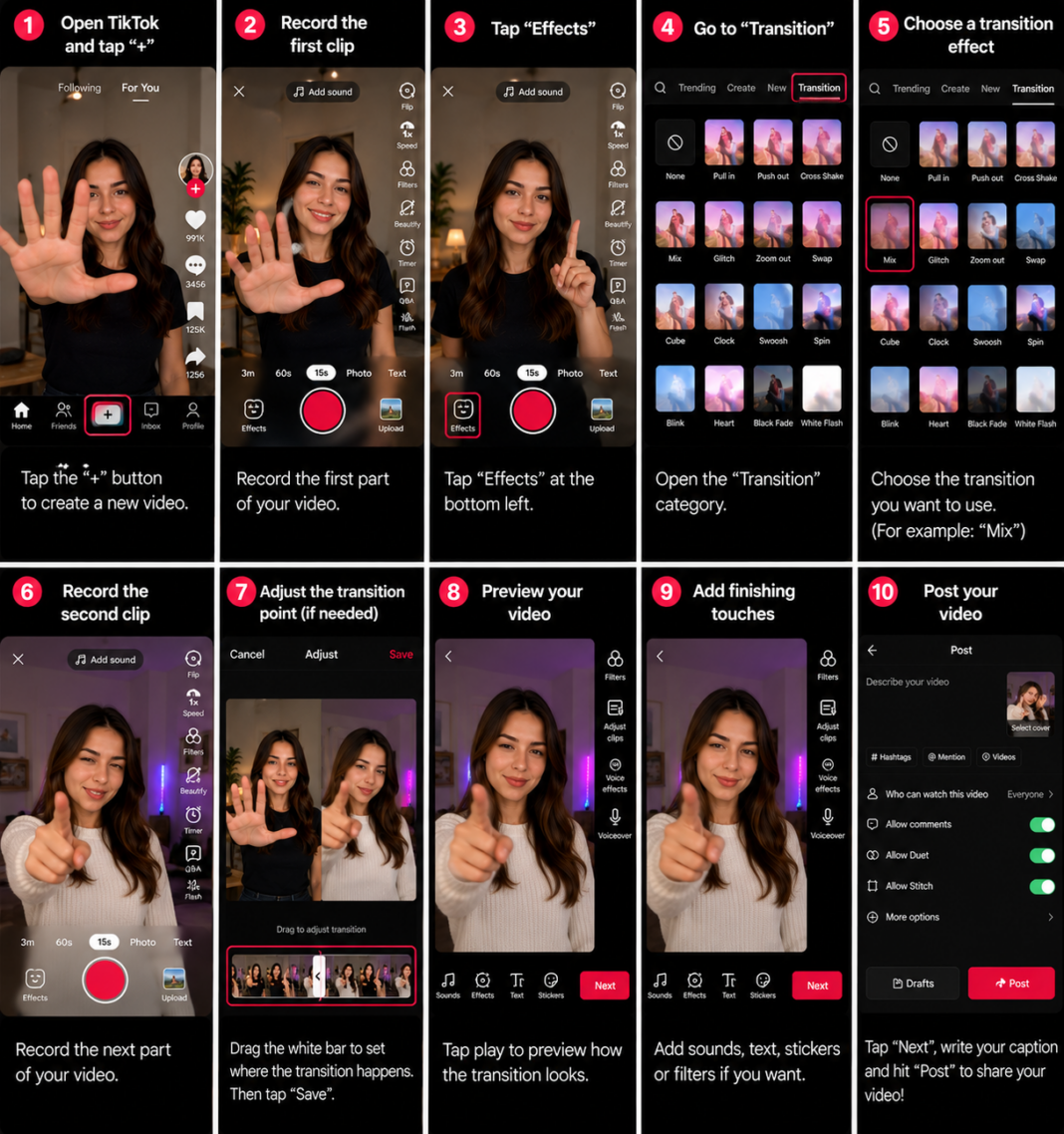

The Transition effect on TikTok is a creative editing technique that connects two or more clips so the change between scenes, outfits, locations, products, camera angles, or moments feels smooth, surprising, funny, cinematic, or visually satisfying. A transition can be created naturally while recording, such as covering the lens with your hand, snapping your fingers, jumping, turning the camera, or moving an object across the frame, or it can be added later inside TikTok’s editor with built in transition tools between clips.
TikTok currently supports transitions directly in the editing screen. According to TikTok’s official video and photo editing guide, you can add transitions between clips by tapping the Transition button between clips, selecting a transition, previewing it, and applying it to the edit. TikTok’s editor also includes tools such as clip trimming, overlays, effects, sound effects, speed controls, Curve speed, and multitrack editing, which can all help make transitions cleaner and more polished.
The most important idea is this: a transition is not only a visual effect. It is a connection between two moments. If the movement, timing, camera position, and audio match, even a simple cut can look professional. If those elements do not match, even a dramatic digital transition can feel messy. 😊
Definitions 🧠
Transition: The visual or audio connection between two clips, scenes, photos, products, outfits, actions, or camera angles.
Cut: A direct change from one clip to another without a visible animation. A clean cut placed at the right frame can look smoother than an overused effect.
Cut on action: A technique where the cut happens while the subject is moving. The movement hides the edit and helps the next clip feel connected.
Match cut: A transition where two clips share similar framing, movement, subject position, shape, color, or action, making the change feel intentional.
Masking transition: A transition where something covers the camera lens, such as a hand, jacket, bag, wall, door, plate, or product, hiding the cut between clips.
Whip pan: A fast camera movement that creates motion blur. When two clips use the same blur direction, they can be joined smoothly.
Speed ramp: A change in playback speed that accelerates or slows down part of a clip. TikTok’s Curve speed tool can help create this type of transition.
Overlay transition: A transition made by placing another video or image layer above the main clip, often used for wipes, light leaks, screen effects, or product reveals.
Beat sync: Aligning the transition with a beat, lyric, clap, drop, snap, or sound effect so the edit feels connected to the audio.
Why Transition Effects Are Popular on TikTok 🎯
Transitions are popular because they create instant visual satisfaction. Viewers enjoy seeing one outfit change into another, a messy room become clean, raw ingredients become a finished meal, a plain face turn into a makeup look, or one location transform into another city with one smooth movement. The effect creates a small surprise, and that surprise can make people rewatch the video to understand how the edit was done.
Transitions are also useful because they compress time. Instead of showing every step of a process, you can jump from beginning to result while still making the change feel connected. This is especially powerful for TikTok because the platform rewards short, clear, visually engaging storytelling.
A good transition is like a magic trick in miniature. The viewer sees the movement, accepts the change, and feels the reveal before analyzing the edit. The goal is not always to hide the technique completely; sometimes the technique is part of the fun. But the transition should still support the content instead of distracting from it. 🎩✨
How to Apply the Transition Effect 🛠️
Method 1: Use TikTok’s Built In Transition Button ✂️
This is the most direct method when you already have two or more clips in TikTok’s editing timeline.
1. Open the TikTok application.
2. Tap the Add Post + button at the bottom of the screen.
3. Record multiple clips or tap Upload and choose videos from your gallery.
4. Continue to the editing screen.
5. Open the timeline where your clips are displayed.
6. Look for the Transition button between two clips.
7. Tap the button between the clips you want to connect.
8. Select a transition style and preview it.
9. Adjust the clip timing if the transition feels too early or too late.
10. Save the transition and preview the complete video.
This method works well for slide transitions, zoom transitions, blur transitions, flash transitions, and other digital effects available in your current version of TikTok. The exact transition list can vary, so preview several options before choosing one.
Method 2: Create a Hand Cover Transition ✋
The hand cover transition is one of the easiest and most reliable TikTok transitions because your hand hides the frame, giving you a perfect place to cut.
1. Place your phone on a tripod, shelf, or stable surface.
2. Record the first clip.
3. At the end of the clip, move your hand toward the camera until the lens is completely covered.
4. Stop recording after the screen is fully covered.
5. Change your outfit, product, background, location, hairstyle, makeup, or scene.
6. Start the second clip with your hand already covering the lens.
7. Pull your hand away in the same direction and at a similar speed.
8. In TikTok’s editor, trim the first clip at the fully covered frame.
9. Trim the second clip so it begins from a similar covered frame.
10. Add a sound effect, whoosh, snap, or beat aligned with the cut.
This transition works beautifully for outfit reveals, makeup transformations, room makeovers, product color changes, and before and after videos.
Method 3: Create a Finger Snap Transition 🫰
The snap transition is quick, simple, and highly recognizable. It works best when the camera and body position remain nearly identical between clips.
1. Set your phone in a fixed position.
2. Record yourself preparing to snap.
3. Snap your fingers and hold the movement briefly.
4. Stop recording.
5. Change the visual element you want to reveal.
6. Return to the same position.
7. Record the second clip beginning from the snap movement.
8. Cut exactly at the snap sound or finger contact.
9. Add a snap sound effect if the original audio is weak.
10. Preview the edit and adjust the cut by a few frames if necessary.
The snap transition is excellent for “before and after” concepts because the sound gives the viewer a clear signal that something is about to change.
Method 4: Create a Whip Pan Transition 💨
A whip pan transition uses fast camera movement to create blur, then hides the cut inside that blur.
1. Record the first clip normally.
2. End the clip by quickly moving the camera left, right, up, or down.
3. Start the second clip with the camera already moving in the same direction.
4. Finish the movement by revealing the new scene.
5. Open both clips in TikTok’s editor.
6. Trim the first clip during the strongest blur.
7. Trim the second clip so it begins with a matching blur.
8. Add a whoosh sound effect if needed.
9. Align the transition with the beat of the music.
10. Preview the direction and speed carefully.
A rightward whip pan should usually continue rightward in the second clip. Matching direction is what makes the transition feel natural.
Method 5: Create an Object Wipe Transition 🎒
An object wipe transition uses a physical object to pass across the lens and cover the frame. It is especially useful for product content because the product itself can become the transition.
1. Choose an object large enough to cover the camera view.
2. Record the first clip.
3. Move the object across the lens until the frame is covered.
4. Record the second clip with the object already covering the lens.
5. Move the object away in the same direction.
6. Trim both clips at the point where the object covers the frame most completely.
7. Add a short sound effect or match the movement to music.
This transition works well with handbags, jackets, plates, books, phones, boxes, tools, makeup brushes, shopping bags, doors, and food items.
Method 6: Create a Jump Transition 🕴️
A jump transition creates a visual change at the highest point of a jump. It is popular for outfit changes, fitness videos, dance edits, and comedy.
1. Place the phone in a fixed position.
2. Record the first clip and jump.
3. Stop the clip near the highest point of the jump.
4. Change the outfit, background, prop, or scene.
5. Return to the same position.
6. Record another jump with similar body posture.
7. Join the clips at the highest point.
8. Add an impact, pop, or beat sound.
9. Preview the body alignment.
10. Re trim if the subject appears to jump sideways unnaturally.
Marking your floor position helps the jump transition look much smoother because your body returns to the same place after the change.
Method 7: Create a Spin Transition 🔄
A spin transition uses body rotation or camera rotation to hide the cut.
1. Record the first scene.
2. End the clip by spinning your body or rotating the phone.
3. Begin the second clip with a similar spin.
4. Keep the spin direction consistent.
5. Trim both clips at the blurriest point.
6. Add a spin sound, whoosh, or quick beat.
This transition can look energetic, but it can also feel dizzy if overused. One spin in a short video is usually enough.
Method 8: Use TikTok’s Curve Speed for a Transition Ramp 📈
Curve speed can make a transition feel more cinematic by accelerating into the cut and returning to normal speed afterward.
1. Add your clip to TikTok’s editor.
2. Select the clip in the timeline.
3. Tap Speed.
4. Choose Curve.
5. Select a preset or customize the speed points where available.
6. Place the fastest section over the movement that hides the cut.
7. Return to normal speed at the reveal.
8. Preview the transition several times.
9. Adjust the speed points if the movement feels too sudden.
10. Add music that supports the ramp.
This method works especially well for outfit reveals, dance transitions, travel location changes, sports edits, product reveals, and cinematic scene changes.
Method 9: Use Overlays for Creative Transitions 🧩
TikTok’s editor supports overlays, which can help create more stylized transitions.
1. Add your main video to TikTok.
2. Open the advanced editing screen.
3. Tap Overlay.
4. Add a short video, image, flash, light leak, texture, object movement, or screen recording layer.
5. Place the overlay over the cut between two clips.
6. Adjust its duration so it does not cover the content too long.
7. Add an effect, sound, or speed change if needed.
8. Preview the transition and reduce opacity or duration when it feels too strong.
Overlay transitions are useful for cinematic videos, product ads, travel montages, gaming content, aesthetic edits, and music videos. However, the overlay should support the cut rather than completely hide the main content.
Which Transition Method Should You Choose? 📊
| Creative Goal | Best Transition Method | Main Advantage | Main Limitation |
|---|---|---|---|
| Connect two clips quickly | TikTok built in Transition button | Fast and native inside the editor | Available styles may vary by app version |
| Create an easy outfit or makeup reveal | Hand cover transition | Simple and reliable | Requires matching hand movement |
| Create a magical before and after change | Finger snap transition | Clear visual and audio cue | Body position must match |
| Move between locations | Whip pan transition | Energetic and cinematic | Direction and speed must match |
| Reveal another product or color | Object wipe transition | Uses the product as part of the edit | The object must cover the lens well |
| Create playful transformation content | Jump or spin transition | Visually obvious and fun | Can look messy without stable framing |
| Create cinematic speed changes | Curve speed transition ramp | Feels polished and dynamic | Requires careful timing |
| Create a stylized edit | Overlay transition | Adds visual personality | Can distract if overused |
Transition Workflow Diagram 🧩
Choose the change you want to show
          |
          v
Pick a transition style
          |
          +--> Hand cover
          +--> Finger snap
          +--> Whip pan
          +--> Object wipe
          +--> Jump or spin
          +--> Built in TikTok transition
          +--> Curve speed ramp
          |
          v
Record clip one with the transition movement
          |
          v
Record clip two with matching movement
          |
          v
Open TikTok editor
          |
          v
Trim clips at the fastest or most covered frame
          |
          v
Add transition, sound effect, or speed ramp
          |
          v
Preview timing and publish
How to Make TikTok Transitions Look Smoother ✨
Use a Stable Camera
Most transition problems begin with camera movement that was not planned. Use a tripod, phone stand, shelf, table, or stable surface when the subject needs to stay in the same place across multiple clips.
Mark Your Position
If you are doing an outfit change, makeup reveal, jump transition, or snap transition, mark your feet on the floor with tape or remember a clear reference point. This helps you return to the same place after changing the scene.
Match the Movement Direction
If your hand covers the lens from left to right in the first clip, it should usually uncover from left to right in the second clip. Matching direction makes the transition feel continuous.
Cut During Motion
The viewer notices fewer differences when the cut happens while something is moving quickly, blurred, or covering the lens. Avoid cutting after the movement has stopped.
Keep Lighting Consistent
If one clip is bright and the next is dark, the transition will look obvious even if the movement matches. Use the same light source and avoid changing camera exposure between clips.
Use Sound Effects
A whoosh, snap, impact, click, flash, door sound, or beat can hide small visual imperfections and make the transition feel intentional.
Do Not Overuse Digital Transitions
A video with a different transition every second can feel chaotic. Choose one main style and repeat it when you want a clean visual identity.
Preview the Transition Frame by Frame
Sometimes one or two extra frames can make a transition feel rough. Trim the end of the first clip and beginning of the second until the motion feels connected.
Practical Example: TikTok Outfit Change Transition 👗🎬
Imagine that you want to create a simple outfit change TikTok. You place your phone on a tripod and choose music with a strong beat at three seconds. In the first clip, you stand in your starting outfit and throw a jacket toward the camera until the fabric completely covers the lens.
You stop recording, change into the second outfit, return to the same floor position, hold the jacket against the lens, and pull it away on the beat. In TikTok’s editor, you trim the first clip at the frame where the jacket fully covers the camera and trim the second clip so it begins from the same covered frame.
You add a short whoosh sound effect and keep the final outfit visible at normal speed for two seconds. The transition works because the camera stays still, the jacket hides the cut, the reveal happens on the beat, and the viewer gets enough time to see the result.
A Short Anecdote ☕
I have seen creators spend a long time searching for dramatic transition effects when the real problem was the timing of the cut. In one simple outfit change video, the creator had recorded a good hand cover movement, but they left several extra frames after the camera was already covered. Once those frames were removed and the second clip began from a matching covered frame, the transition looked smooth without adding any extra digital effect.
The lesson is simple: transitions usually fail because of timing, not because the effect is not fancy enough. A clean cut at the right moment can outperform a complicated transition placed at the wrong moment.
Personal Workflow 🙂
For a quick TikTok transition, I would start with the physical movement before opening the effects menu. I would choose a hand cover, object wipe, or snap because these transitions are easy to control and do not depend heavily on app specific effects. I would record each version two or three times, keep the best take, and trim the cut at the point where the movement hides the frame most effectively.
For a more polished edit, I would combine a physical transition with a small sound effect and, if needed, a short built in transition between clips. I would avoid using too many effects at once because the transition should help the viewer understand the change, not distract them from the video’s main idea.
Common Transition Problems and Solutions 🧯
The transition looks jumpy: The body position, camera angle, or movement direction may not match. Re record with a tripod and mark your position.
The cut is too obvious: Trim the clips during the fastest movement or when the lens is fully covered.
The lighting changes suddenly: Record both clips in the same lighting and avoid moving closer or farther from the light source.
The movement feels too slow: Speed up the transition section or cut earlier during the movement.
The transition feels chaotic: Use fewer effects, keep the movement simple, and avoid combining spin, flash, zoom, and blur all at once.
The audio does not match: Move the cut to the beat or add a sound effect exactly at the transition point.
The built in transition button is missing: Make sure you have at least two clips in the editing timeline and update TikTok. Interface options can vary by account and version.
The reveal passes too quickly: Keep the final result on screen at normal speed for at least one or two seconds.
Frequently Asked Questions 🤓
1. Where is the Transition button on TikTok?
After adding multiple clips, open TikTok’s editing screen and look for the Transition button between clips in the timeline.
2. Can I add transitions after recording?
Yes. Record or upload multiple clips, open the editing timeline, tap the Transition button between clips, and select a transition style.
3. Why can’t I see the Transition button?
You may need more than one clip in the timeline, a newer app version, or a different editing screen. Some interface options can vary by account.
4. What is the easiest TikTok transition for beginners?
The hand cover transition is one of the easiest because the covered frame hides the cut between clips.
5. How do I make an outfit change transition?
Record the first outfit, cover the lens, change outfits, begin the second clip with the lens covered, and trim both clips at matching covered frames.
6. How do I make a location change transition?
Use a whip pan, object wipe, or hand cover, then recreate the same movement in the second location.
7. Can I use transitions with photos?
Yes. Add multiple photos or photo based clips and use transitions, zooms, slides, or effects between them.
8. Can Curve speed help with transitions?
Yes. Curve speed can create acceleration before the transition and return to normal speed at the reveal.
9. Do transitions improve TikTok performance?
They can improve watchability when they support the story, but unnecessary transitions may distract viewers and weaken clarity.
10. What sound should I use for transitions?
Whoosh, snap, impact, camera shutter, pop, click, and beat drop sounds often work well, depending on the movement.
People Also Asked 🔎
How do TikTok creators make seamless transitions?
They match camera position, movement direction, subject placement, lighting, and timing, then cut during motion blur or a covered frame.
Can I make transitions without using TikTok’s transition button?
Yes. Physical transitions such as hand covers, snaps, jumps, spins, whip pans, and object wipes can work without any built in digital transition.
What is the best transition for product videos?
Object wipes are excellent because the product can move across the lens and reveal a new color, feature, package, or final result.
What is the best transition for travel videos?
Whip pans, match cuts, door transitions, walking transitions, and camera movement transitions work well for changing locations.
Should I record transitions inside TikTok or upload clips later?
Recording inside TikTok is convenient, but recording with your phone camera first can provide more control and higher quality before editing in TikTok.
Conclusion ✅
To create the Transition effect on TikTok, record or upload at least two clips, open the editing timeline, and use TikTok’s built in Transition button between clips when you want a native digital transition. For more natural and flexible results, create the transition while recording with a hand cover, finger snap, whip pan, object wipe, jump, spin, or matching movement.
The smoothest transitions come from careful recording, not only from effects. Keep the camera stable, match the subject’s position, use the same movement direction, cut during the fastest or most covered frame, synchronize the change with music, and add a sound effect when needed. For advanced pacing, use Curve speed, overlays, and built in transitions carefully.
A good TikTok transition should make the viewer enjoy the change without losing track of the story. When the movement, edit, and sound all meet at the same moment, the transition feels clean, satisfying, and worth watching again. 🎬✨